Triggers
React to device state changes with conditional automation.
What are Triggers?
Triggers are events fired by devices when their internal state changes - an input change on a switcher, a countdown reaching zero, a video finishing playback. Unlike controls (physical inputs), triggers represent device side events you can react to with automated command sequences.
Each trigger can have one or more conditions. When the trigger fires and a condition is met, the commands mapped to that condition run, in order, on any device in your show.
Opening the Trigger Mapping Editor
Opening the Trigger Mapping Editor:
- Find the source device in the device list.
- Click its 'Triggers' button. The button is only enabled if the device exposes triggers.
- The 'Trigger Mapping' window opens, titled with the device name.

Trigger Mapping Editor Layout
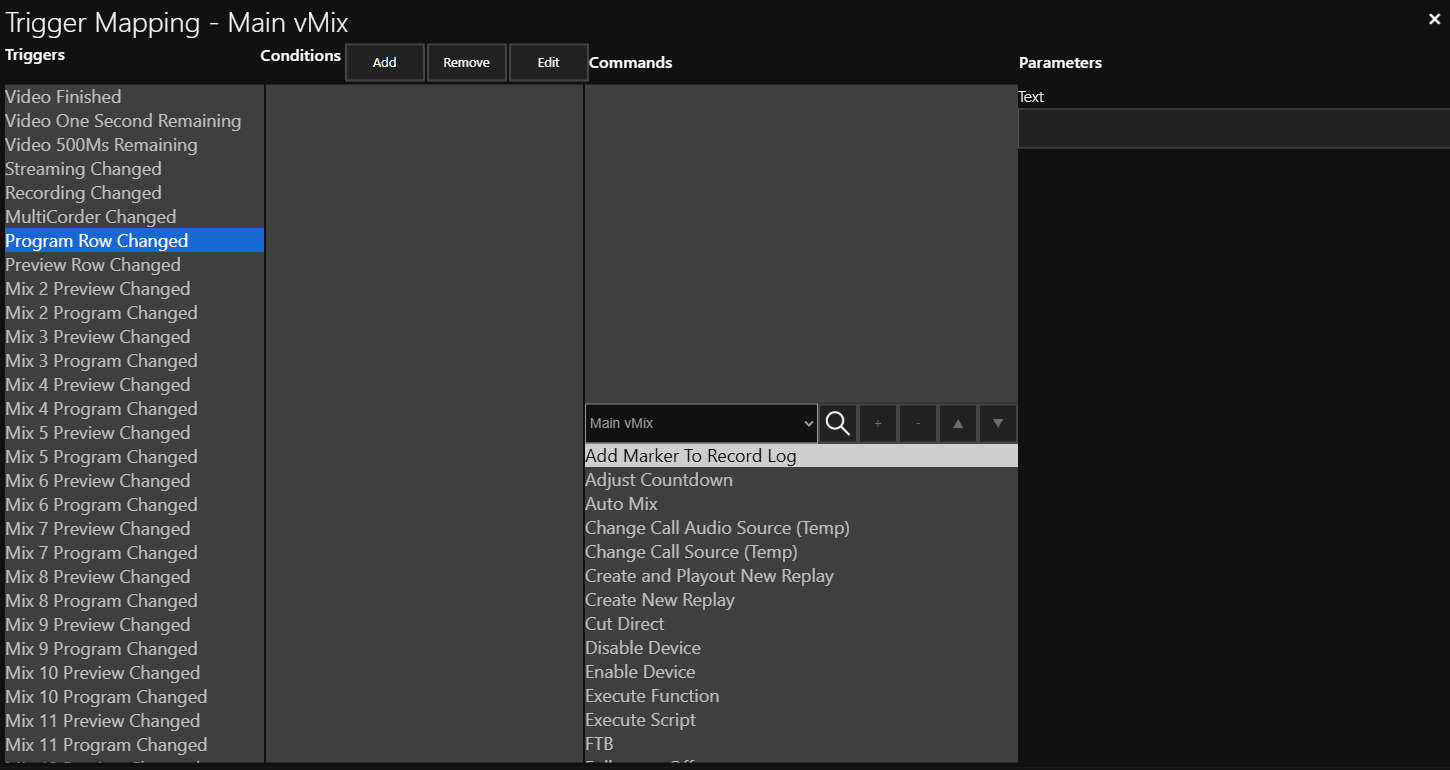
The four columns:
- 'Triggers' (left) - All triggers the source device exposes. Select one to see its conditions.
- 'Conditions' (middle) - Conditions you have defined for the selected trigger. Has 'Add', 'Remove', and 'Edit' buttons above the list.
- 'Commands' (right top) - The commands already mapped to the selected condition, shown as the device name followed by the command. Below them are a target device dropdown, a search button, and buttons to add (+), remove (-), move up and move down, followed by the list of commands available on the target device.
- 'Parameters' (right) - Editable parameters for the selected command.
Creating a Trigger Condition
Adding a trigger condition:
- Select a trigger in the 'Triggers' list.
- Click the 'Add' button above the 'Conditions' list.
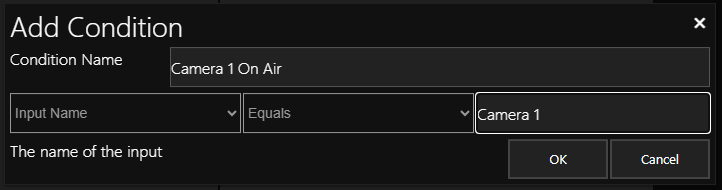
- The 'Add Condition' dialog opens with three fields.
- Type a 'Condition Name' at the top for easier identification.
- Select a parameter from the first dropdown.
- Select a comparison operator from the second dropdown. Available operators depend on the parameter type.
- Enter the comparison value in the third field. For numbers, use the number box; for text, type the text; for yes/no values, select True or False.
- Click 'OK'. The condition appears in the Conditions list.
Available comparison operators by type
| Parameter Type | Operators |
|---|---|
| Number | Equals, Does Not Equal, Greater Than, Less Than |
| Text | Equals, Does Not Equal, Contains |
| True or False | Equals, Does Not Equal |
When a parameter needs explaining, a short hint appears at the bottom left of the dialog. Read it to see what range of values the device reports.
To change a condition later, select it and click 'Edit'. To delete it, select it and click 'Remove'. Removing a condition also removes the commands mapped to it.
Mapping Commands to Conditions
Adding a command to a trigger condition:
- Select a condition in the 'Conditions' list.
- Select a target device from the dropdown. This can be any device in your show, not only the one that fires the trigger.
- Optionally click the search button to filter the command list.
- Select a command from the list of available commands.
- Click the '+' button. The command appears in the mapped commands list above.
- If the command has parameters, set them in the 'Parameters' area.
- Add more commands if needed - they run in order from top to bottom.
- Use the '▲' and '▼' buttons to reorder commands, and '-' to remove the selected command.

Devices can have hundreds of commands. Click the search button and type part of a name to narrow the list. The button glows while a filter is active.
Trigger Mapping in Practice
The screenshot above uses vMix as both the source and the target. The 'Program Row Changed' trigger fires whenever the program input changes. The condition 'Camera 1 On Air' compares the 'Input Name' parameter to 'Camera 1', and two commands run when it matches: one adds a marker to the record log, the other turns the overlay off.
Triggers only fire while the source device is enabled and connected. If a mapped trigger never runs, check the device tile first.
A single trigger condition can run several commands in a row, on several devices. For example, when the switcher goes to Camera 1, you can recall a camera preset and change a lighting scene from the same condition.