XM Tools
Finding, checking, licensing, and updating Central Control XM hardware units from the CORE launcher.
Central Control XM units are P.I. Engineering hardware with CORE running on the unit itself, so each one is a CORE system in its own right. XM Tools is a small window for looking after them on your network. You only need it if you own an XM unit. Open it from the launcher: click the gear icon and choose 'XM Tools'.
Connecting to a Unit
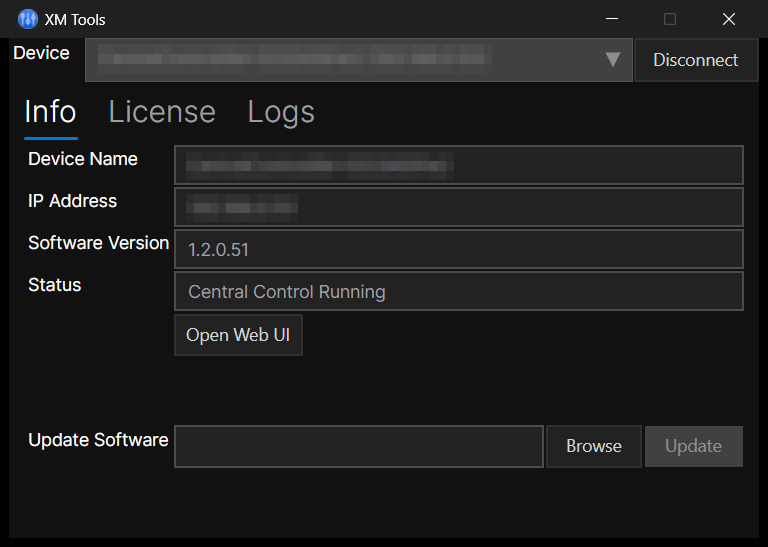
At the top of the window, the 'Device' list shows every XM unit CORE has found on the network. Units appear automatically and the list refreshes every few seconds, so a unit that has just been plugged in can take a short while to show up. Open the list, pick your unit, and click 'Connect'. While it connects the button reads 'Connecting...', and once connected it reads 'Disconnect'. Until you are connected the window shows 'No Device Connected'.
The Tabs
Once connected, three tabs are available.
| Tab | What it does |
|---|---|
| Info | Shows the device name, IP address, software version, and status, for example 'Central Control Running'. 'Open Web UI' opens the unit's own web interface in your browser. 'Update Software' updates the unit, see below. |
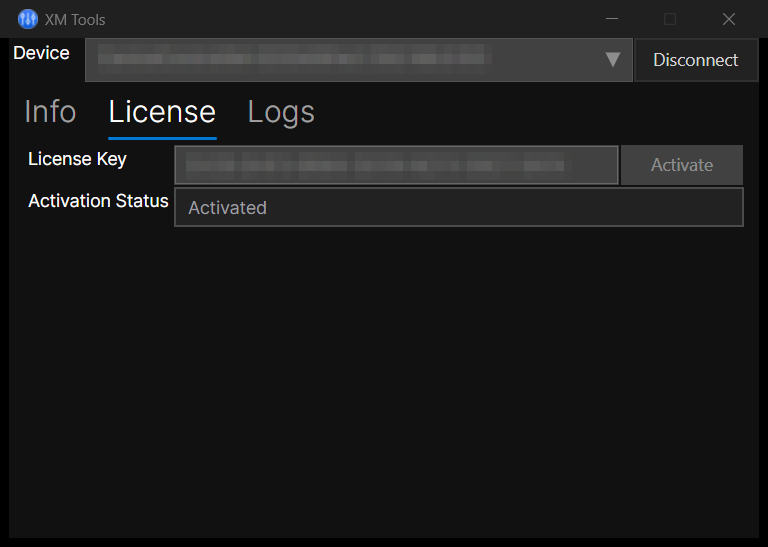
| License | Shows the unit's license key and its activation status. If the unit is not activated, enter a license key and click 'Activate'. Once the unit is activated the key is locked and 'Activate' is greyed out. |
| Logs | 'Download Logs' saves the unit's logs to a zip file. The file is named with the device name and the date and time. |
Updating an XM Unit
Updating an XM unit:
- Connect to the unit and open the 'Info' tab.
- Click 'Browse' and choose the XM update file (a .zip file from Central Control).
- Click 'Update'. The 'Update' button stays greyed out until you have chosen a file. The label under the box reads 'Updating...' while the update runs, then 'Update Complete'.