Triggers
React to device state changes with conditional automation.
What are Triggers?
Triggers are events fired by devices when their internal state changes - a scene change on a switcher, a countdown reaching zero, a video finishing playback. Unlike controls (physical inputs), triggers represent device side events you can react to with automated command sequences.
Opening the Trigger Mapping Editor
Opening the Trigger Mapping Editor:
- Find the source device in the device list.
- Click its 'Triggers' button. Only enabled if the device exposes triggers.
- The 'Trigger Mapping' window opens.
Trigger Mapping Editor Layout
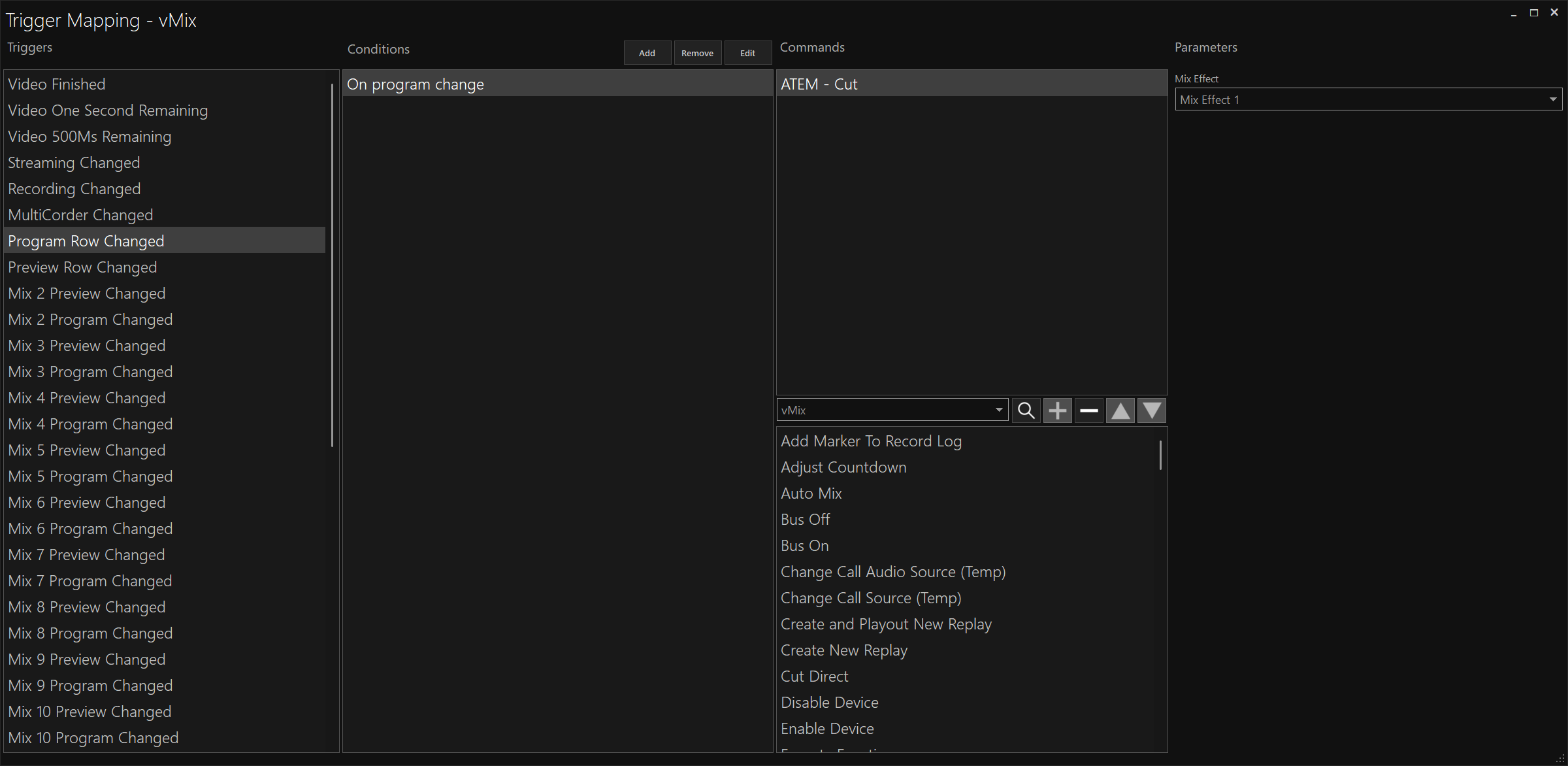
The four columns:
- 'Triggers' (left) - All triggers the source device exposes. Select one to see its conditions.
- 'Conditions' (middle) - Conditions you have defined for the selected trigger. Has 'Add', 'Remove', and 'Edit' buttons below.
- 'Commands' (right top) - Available commands on the target device. Has a target device dropdown and icon buttons for add, remove, search, move up, move down.
- 'Parameters' (right bottom) - Editable parameters for the selected mapped command.
Creating a Trigger Condition
Adding a trigger condition:
- Select a trigger in the 'Triggers' list (e.g., 'Scene Changed').
- Click the 'Add' button below the 'Conditions' list.
- The 'Edit Condition' dialog opens with three fields:
- Select a parameter from the first dropdown (e.g., 'SceneIndex').
- Select a comparison operator from the second dropdown. Available operators depend on parameter type:
- Enter the comparison value in the third field. For integers, use the spinner; for strings, type text; for booleans, select True or False.
- Optionally type a 'Condition Name' at the top for easier identification.
- Click 'OK'. The condition appears in the Conditions list.

Available comparison operators by type
| Parameter Type | Operators |
|---|---|
| Integer | Equals, Does Not Equal, Greater Than, Less Than |
| String | Equals, Does Not Equal, Contains |
| Boolean | Equals, Does Not Equal |
Some triggers support a 'Don't Care' evaluation mode that matches regardless of parameter value. Use this when you want to react to any trigger fire - for example, running a command every time any scene changes, not just a specific scene.
Mapping Commands to Conditions
Adding a command to a trigger condition:
- Select a condition in the 'Conditions' list.
- Select a target device from the dropdown above the 'Commands' list.
- Optionally use the search icon (or Ctrl+F) to filter commands.
- Select a command from the 'Commands' list.
- Click the add icon button. The command appears in the mapped commands area below.
- If the command has parameters, configure them in the 'Parameters' section.
- Add more commands if needed - they execute in order from top to bottom.
- Use the up/down arrow icons to reorder commands.
Right Click Options
Right click on the mapped commands list for:
- 'Block Execution' (checkable) - Command exists but does not execute.
- 'Block Feedback' (checkable) - Command executes but no feedback sent.
- 'Copy Commands' / 'Paste Commands' - Clipboard operations.
Right click on the Triggers list for:
- 'Copy All Commands' - Copy all commands from all conditions on this trigger.
- 'Delete All Commands' - Remove all mapped commands from this trigger.
- 'Paste All Commands' - Paste previously copied trigger commands.
Right click on the Conditions list for:
- 'Sort (Value)' - Sort conditions by their value.
- 'Sort (Name)' - Sort conditions by their label.
Special Trigger Commands
Two special commands can be inserted into trigger command sequences:
- 'Delay Execution' - Inserts a timed pause before the next command. Use for sequencing actions that need a gap (e.g., wait 500ms for a switcher transition to complete before cueing the next action).
- 'Cancel If' - Conditionally stops the remaining sequence. If the cancel condition is met, no further commands execute.
Combine triggers with Delay Execution to build sophisticated automated sequences: when Switcher changes to Camera 1 → wait 500ms → recall PTZ preset → wait 200ms → adjust audio levels. All from a single trigger condition.